Magic 8 ball tutorial in
AS3
In this tutorial you will learn how create a magic 8 ball game
in Actionscript 3.0. A magic 8 ball is a classic toy
used for telling the future by answering your questions. You would normally ask
a question to the 8 ball, shake it and turn it over to reveal the predicted
answer. The standard magic 8 ball has twenty predicted answers: ten positives,
five negatives and five maybes. I will be reducing the number of answers to ten
in this tutorial.
I will be creating this tutorial in two parts. The first part will deal with
creating the initially magic 8 ball game, and the second part will deal with
adding the special effects such as the movements and sounds.
Make sure the TweenieLite plug-in is installed.
Magic 8 ball tutorial in AS3 – part 1
Step 1
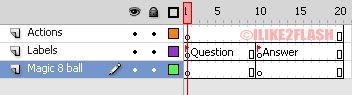
Open a new Flash AS3 file and then replicate the timeline shown below. I have
created three layers on the timeline. The first layer is called ‘actions’ and
is used for holding the Actionscript code. The second
layer is called ‘labels’ and has two keys frames with different names. To add
these names you select the appropriate key frames and change the name in the
properties panel. The final layer is called ‘Magic 8 ball’ and is used display
the magic 8 ball.
Step 2
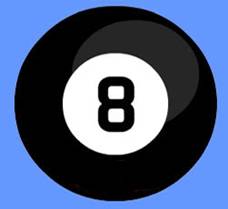
On the timeline, select the ‘Magic 8 ball’ layer then the first frame.
Create the following magic 8 ball as shown below using the Oval tool. The magic
8 ball is simply two oval shapes inside each other with a letter in the centre.
Step 3
Convert your magic 8 ball into a movie clip (F8). Then give the movie
clip the instance name: “magic8Front_mc”.
Step 4
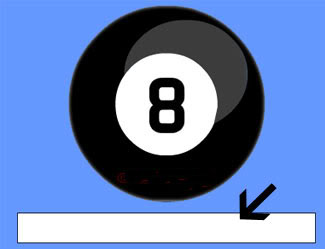
Select the text tool with input text and drag an input text field below the
magic 8 ball. Make sure you select the ‘check border around text’
button, and change the behavior to “Single line”. Then select the input
text box and give the instance name: “question_txt”.
You may also wish to embed the uppercase, lowercase and punctuation characters
into the input text field
Step 5
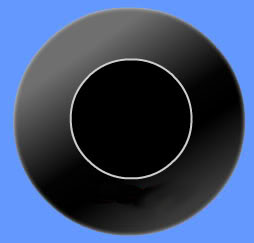
On the timeline, select the ‘Magic 8 ball’ layer then the tenth frame.
Create the reverse of the magic 8 ball as shown below using the Oval tools. I
have added a linear gradient to the outer oval shape, and have used a solid
black color for liner oval shape with a #CCCCCC stroke.
Step 6
Convert the reverse of the magic 8 ball into a movie clip (F8), and then
give the instance name: “magic8Back_mc”
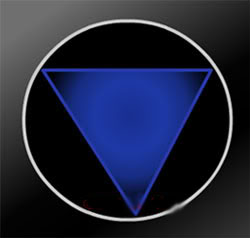
Step 7
Double click on the reverse magic 8 ball to enter its timeline. Then insert a
new layer and create the following triangle shape inside the inner oval. I have
given the triangle a radial gradient and a #2739A9 colored stroke.
Step 8
Convert the triangle shape into a movie clip (F8), and select the centre
registration point and then give the following instance name: “output_mc”.
Step 9
Double click on the triangle to enter its timeline. Then insert a new layer and
select the text tool with dynamic text, and drag a dynamic text field on top of
the triangle shape like below. I have given the dynamic text field a white color
and ‘align centre’ for the format.
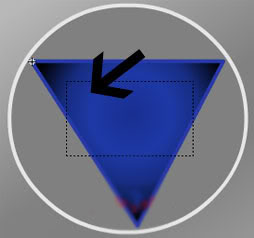
Select the dynamic text field and give the following instance name: “answer_txt”. Then select the embed characters button and
embed the uppercase font glyphs.
Step 10
Return to the main timeline. On the Actions layer select the first frame and
then open up the Actionscript panel and enter the
following code.
//Imports the tweenlite packages.
import com.greensock.*;
//Stops the timeline playhead.stop();
//Adds the click event listener to magic 8 ball.magic8Front_mc.addEventListener(MouseEvent.CLICK, showNext); function showNext(event:MouseEvent):void {
//A prompt is displayed if no question is entered.if (question_txt.text==""|| question_txt.text=="Enter Question") {
question_txt.text="Enter Question";
} else {gotoAndStop("Answer");
showAnswers();
}} function showAnswers() {
//Create a new array with all the responses.var responseArr:Array = new Array();
responseArr[0]="YES";
responseArr[1]="MOST LIKELY";
responseArr[2]="IT IS CERTAIN";
responseArr[3]="OUTLOOK GOOD";
responseArr[4]="NO";
responseArr[5]="DOUBTFUL";
responseArr[6]="REPY IS NO";
responseArr[7]="ASK AGAIN";
responseArr[8]="TRY AGAIN";
responseArr[9]="BETTER NOT";
responseArr[10]="MAYBE";
//Chooses a random number in the array.var r:int=Math.floor(Math.random()*responseArr.length);
//Display the random response in the text field.magic8Back_mc.output_mc.answer_txt.text=responseArr[r]; //Set the answer triangle initially invisible.magic8Back_mc.output_mc.alpha = 0; //Displays a slight random position of the triangle shape.magic8Back_mc.output_mc.rotation=Math.random()*30; //This creates the appearing effect with tweenlite.TweenLite.to(magic8Back_mc.output_mc, 3, {autoAlpha:1});
}
Step 11
Test the magic 8 ball Ctrl +
Enter. Now type your question
in the input field and click on the magic 8 ball, a response will appear